iTerm2/et/tmux MacOS Setup
It’s been a quite a long time since I’ve written a post on computer-setup.
It’s just been a while since I’ve been challenged to change what I’m comfortable with… Anyway, glad to finally have been challenged once more to make some change :)
Terminal.app/ssh/screen – I’ve always been using the native Terminal.app, refusing to learn the iTerm2.app/et/tmux, “new-kid tools” since 2013. Wow what a difference 7+ years makes, now I feel old! Is this what it feels like to be a “responsible” adult? yay
iTerm2 setup
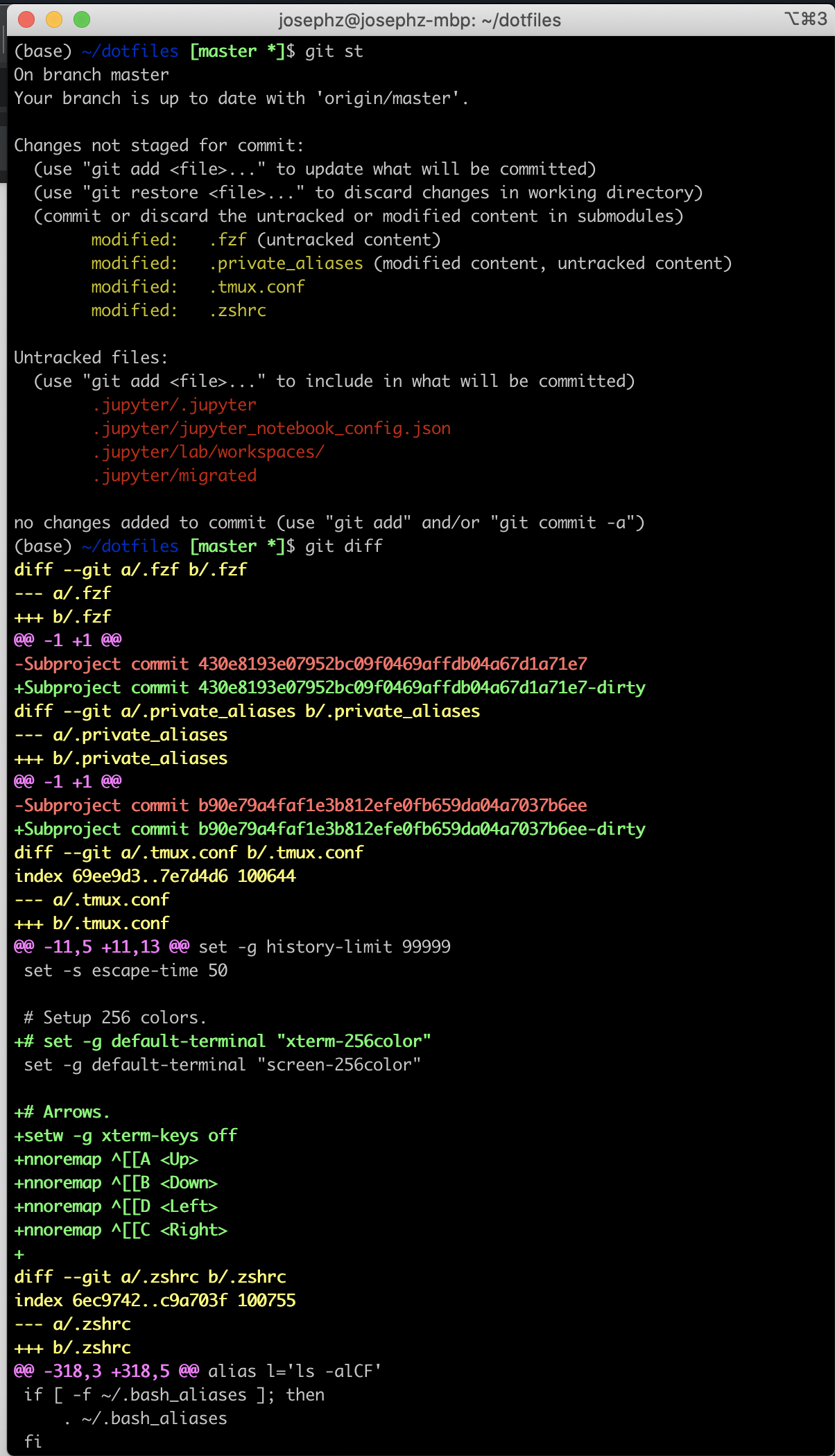
welp, dark-background on default. Never liked that for terminal ever since it was introduced (I use dark-mode by default otherwise, weird…) I just like reading logs on a white background, although all my code-editing is always on dark-backgrounds otherwise. Years of learned visual-muscle-memory?
Just look how bad this looks… also the cursor was invisible while typing the commands
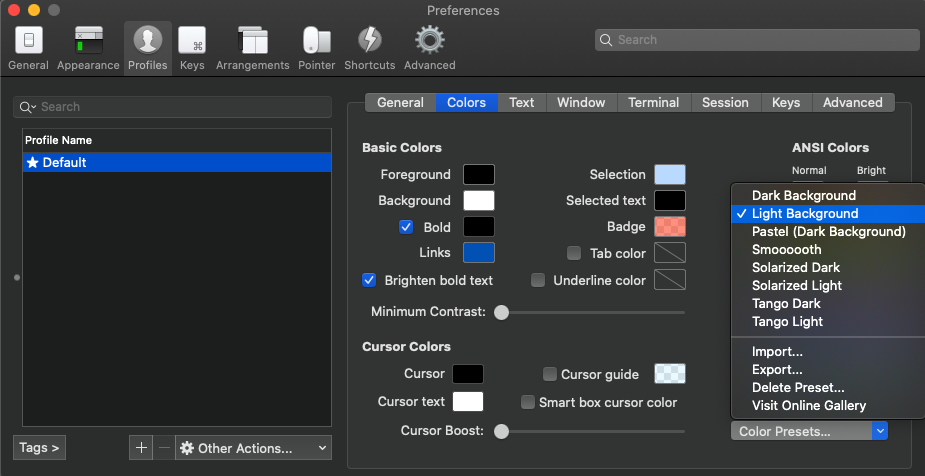
fixing the default color profile
I never understood why I’d ever want to have multiple color profiles, unless your workflows are seriously dialed for different things (e.g. sql vs coding vs log-reading etc… maybe super-nerds/data-base admins for schools/hospitals get a pass), why not just use what’s most comfortable for as many situations as possible?
let’s fix that quickly
Also… why the heck is the nice “SF Mono” font not available: quickly download that from Apple (lol, apparently they also made a “New York” font, where’s the love for Seattle, huh?)
I thought that was it, but there’s a bunch of other defaults that were changed that I hate.
The cusor is invisible in my dark-mode editor! WTF, why would you use 100% black? That’s like the number one design principle broken from my favorite design site! The default in Terminal.app is 50% gray! Compatible in both light/dark backgrounds!
More small annoying minor tweaks…
- “Use thin strokes for anti-aliased text: Never”
- By default this was enabled for “Retina displays”, it made it such that on my cheap Dell monitor the text looked fine, but on my MBP the text was all wonky. Who calibrated these defaults?? They must hate visual aesthetics and Wes Anderson
- One more note – If you use
tmux, it generates a new “tmux” color profile which is duplicated from whatever the “default” is. If you rantmuxbefore making changes to the default, anything you run in tmux will look weird. Fix is just to delete the previous profile and re-clone the new default and name it “tmux”. - In
Terminal.app, you can useoption + <arrow-key>similar to thectrl + <arrow-key>in Windows to jump left/right between words. This for whatever reason is not the default iniTerm2.app. One more change in the “Keys” “default” and “tmux”profiles…
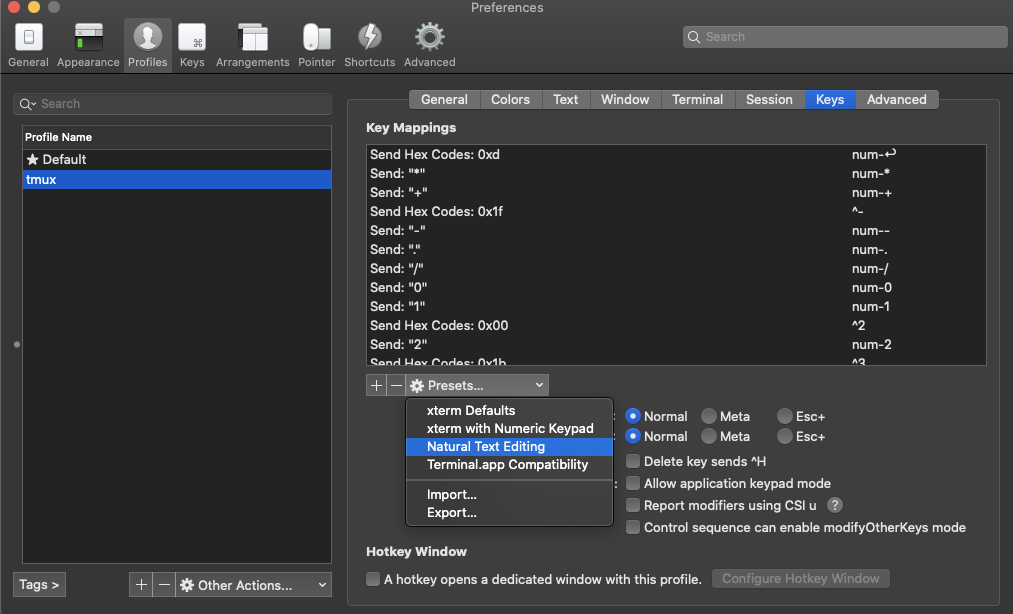
edit: I later noticed that fn + delete wasn’t deleting (emulating the Delete key correctly), I later changed the preset to “Terminal.app Compatibility” (I should have known earlier) and this fixed the issue, and kept the option + <arrow-key> mappings I liked.
Okay, light-mode-for-iTerm2, white-background, SF Mono 11, nice neutral gray block-cursor and non-skinny text. Looks and quacks like a duck! Let’s move on.
From here it’s pretty simple, let’s go setup Eternal Terminal
et setup
On your Linux server
# Installs et.
sudo whatever-you-run-to-install et

# Enable et.
sudo systemctl enable --now et
systemctl status et

# Make sure you can run et on the right port for your ssh. important!
sudo sed -i "s/port = XYXY/port = XYXZ/" /etc/et.cfg
sudo systemctl restart et

# this takes a while! go get lunch or something.
# EDIT: In a previous version I said to
# sudo-reboot but turns out shouldn't be necessary!
# sudo reboot
And finally… on the MBP
brew install MisterTea/et/et

# Basically use `et` in-place of `ssh`.
et $USER@your-server.wee.xyz:XYXZ
I usually set an alias for whatever servers I need:
$ type et-small
et-small is aliased to `et $SSH_SMALL:XYXZ'
Once you’re in, let’s tmux!
tmux setup
A Quick overview of how to run tmux
# Starts a new session
tmux -CC

# Resumes previous session
tmux -CC a -d

# New named session
tmux -CC new-session -AD -s <NAME-OF-SESSION-HERE>
You’ll also want to make sure your ~/.tmux.conf is set to what you like to use.
I personally like scrolling up/down via mouse-wheel, and we spent so much time on getting the colors right, make sure that hard work isn’t wasted by setting 256colors!
$ cat ~/.tmux.conf
# Make mouse useful in copy mode.
setw -g mouse on

# Enables scrolling via mouse-scroll wheel.
bind -n WheelUpPane if-shell -F -t = "#{mouse_any_flag}" "send-keys -M" "if -Ft= '#{pane_in_mode}' 'send-keys -M' 'copy-mode -e; send-keys -M'"

# Scroll history.
set -g history-limit 99999

# Lower escape timing from 500ms to 50ms for quicker response to scroll-buffer access.
set -s escape-time 50

# Setup 256 colors.
set -g default-terminal "xterm-256color"
Wahoo!!!! Now if you lose internet or VPN crashes, you won’t lose your ssh/tmux session since it auto-connects :) amazing!!!!